---
sidebar_position: 40
---
# Opening a website when walking on the map
:::caution Important
While the information below is still valid, we recommend you to use the new [inline map editor](../inline-editor/) to define areas
that trigger opening a website.
The inline map editor is easier to use and can be accessed directly from WorkAdventure.
:::
## The openWebsite property
On your map, you can define special zones. When a player will pass over these zones, a website will open (as an iframe
on the right side of the screen)
In order to create a zone that opens websites:
* You must create a specific object.
* Object class must be "`area`"
* In object properties, you MUST add a "`openWebsite`" property (of type "`string`"). The value of the property is the URL of the website to open (the URL must start with "https://")
* You may also use "`openWebsiteWidth`" property (of type "`int`" or "`float`" between 0 and 100) to control the width of the iframe.
* You may also use "`openTab`" property (of type "`string`") to open in a new tab instead.
* You can decide if the website should be closable with "`openWebsiteClosable`" property (of type "`bool`")
:::warning Forbidden iframes
A website can explicitly forbid another website from loading it in an iFrame using
the [X-Frame-Options HTTP header](https://developer.mozilla.org/en-US/docs/Web/HTTP/Headers/X-Frame-Options). You can
read more about this common issue and possible workaround the [troubleshooting guide](./troubleshooting.md#embedding-an-iframe-is-forbidden).
:::
:::info
As an alternative, you may also put the `openWebsite` properties on a layer (rather than putting them on an "area" object)
but we advise sticking with "area" objects for better performance!
:::
:::caution
If the website you are embedding is using cookies, those cookies must be configured with the `SameSite=none` attribute. Otherwise,
they will be ignored by the browser. If you manage to see the website you embed but cannot log into it, the `SameSite` attribute is most
likely the culprit. You can read more about this common issue and possible workaround the [troubleshooting guide](./troubleshooting.md#i-cannot-log-into-my-embedded-website).
:::
## Integrating a Youtube video
A common use case is to use `openWebsite` to open a Youtube video.
The global Youtube page cannot be embedded into an iFrame (it has the `X-Frame-Options` HTTP header).
To embed a Youtube video, be sure to **use the "embed" link**. You can get this link be clicking "Share > Embed" in Youtube.
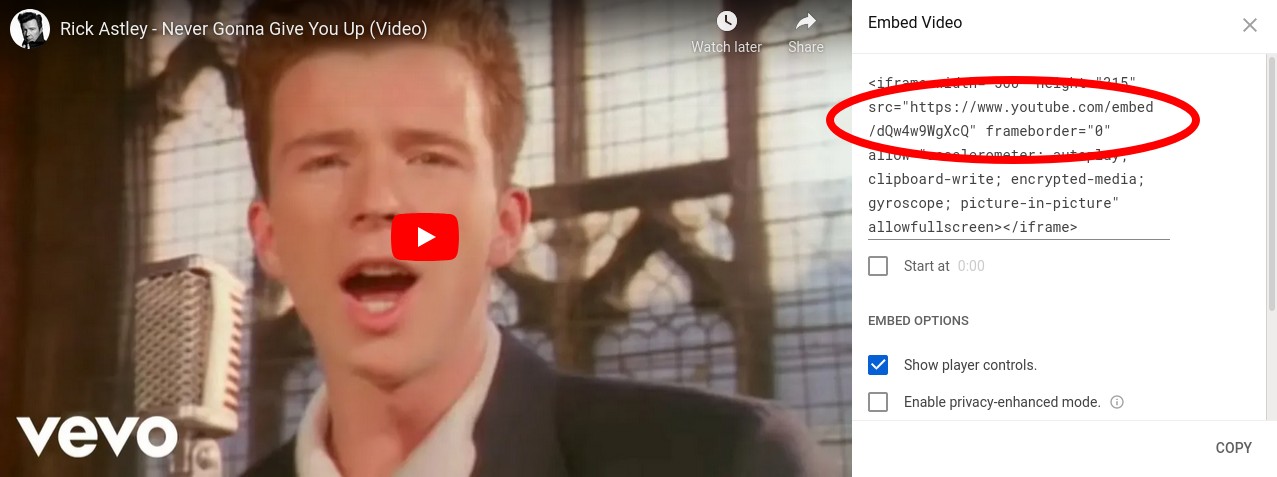
Find the URL of your video in the "embed Video" HTML snippet on Youtube
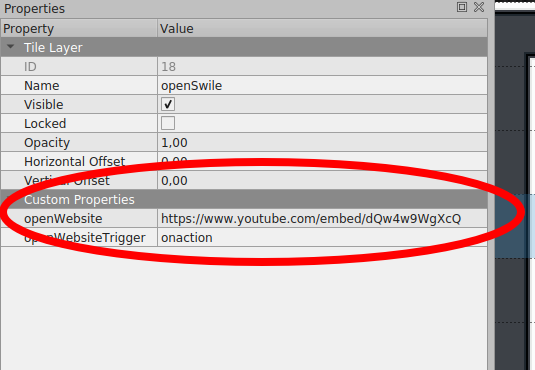
Put this URL in the "openWebsite" property
### Triggering of the "open website" action
By default, the iFrame will open when a user enters the zone defined on the map.
It is however possible to trigger the iFrame only on user action. You can do this with the `openWebsiteTrigger` property.
If you set `openWebsiteTrigger: onaction`, when the user walks on the area, an alert message will be displayed at the bottom of the screen:
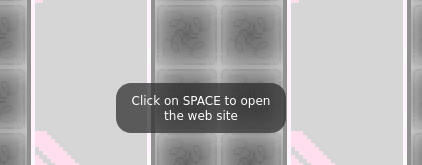
The iFrame will only open if the user clicks Space
If you set `openWebsiteTriggerMessage: your message action` you can edit alert message displayed. If is not defined, the default message displayed is 'Press on SPACE to open the web site'.
If you set `openWebsiteTrigger: onicon`, when the user walks on the area, an icon will be displayed at the bottom of the screen:
The iFrame will only open if the user clicks on icon
### Setting the iFrame "allow" attribute
By default, iFrames have limited rights in browsers. For instance, they cannot put their content in fullscreen, they cannot start your webcam, etc...
If you want to grant additional access rights to your iFrame, you should use the `openWebsitePolicy` property. The value of this property will be directly used for the [`allow` atttribute of your iFrame](https://developer.mozilla.org/en-US/docs/Web/HTTP/Feature_Policy/Using_Feature_Policy#the_iframe_allow_attribute).
For instance, if you want an iFrame to be able to go in fullscreen, you will use the property `openWebsitePolicy: fullscreen`
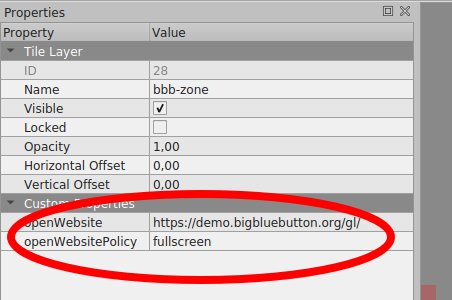
The generated iFrame will have the allow attribute set to: <iframe allow="fullscreen">
### Allowing Scripting API access in the iFrame
If you want the website opened in the iFrame to be able to communicate with WorkAdventure through the [scripting API](/developer/map-scripting/), you need to add a boolean `openWebsiteAllowApi` and set it to `true`.
### Opening several co-websites
You can open several cowebsites at the same time.
Each cowebsite will open in a separate tab in the right panel and you can switch between them.